How to sync Microsoft 365 GAL to individual Google Workspace user contacts (and get correct caller ID on Android)
Many organizations run Microsoft 365 for email and collaboration, but still hand out Google Workspace accounts to at least part of their team – for shared drives, Google Meet, or simply because that’s what a subsidiary or partner company standardized on. This creates a common gap: the company’s Global Address List (GAL) lives in Microsoft 365, but the people who need to look up colleagues, or answer a phone call and see a name instead of a raw number, are working from Google accounts.
This is especially noticeable on Android devices. Android phones pull caller ID and contact names directly from the Google account they’re signed into. If a colleague’s number isn’t saved in that user’s personal Google Contacts, an incoming call from them just shows up as an unknown number – no name, no company, no context. Multiply that across a whole team and it becomes a real productivity and even security concern (unrecognized numbers are more likely to be ignored or, worse, mistaken for spam).
In this post, we’ll look at how SyncPenguin solves this by automatically syncing the Microsoft 365 GAL into each user’s personal Google Contacts, keeping caller ID, names, and company details current – without any manual exporting or CSV uploads.
The use case
The goal is straightforward: make company contact information available on Android devices that are signed in with Google accounts, so that users see the correct caller ID and contact names when receiving calls from colleagues or other company contacts. In other words, when someone from the office calls, the recipient’s phone should show their name and title – not just a phone number.
This use case comes up in a few recurring scenarios:
- Mixed-tenant organizations – email and directory services run on Microsoft 365, while some or all staff use Google Workspace accounts on their phones or other devices.
- Mergers and acquisitions – one company’s employees remain on Microsoft 365 while another’s are already provisioned in Google Workspace, and leadership wants a unified contact experience across both.
- Frontline and mobile teams – field staff, drivers, or sales reps who rely heavily on their Android phones and need instant, reliable caller ID for internal calls.
- BYOD and Android-first companies – where Google is the primary identity provider on mobile devices, even though the backend directory is Microsoft-based.
In all of these cases, manually maintaining contact lists is not realistic. The GAL changes constantly: new hires, role changes, departures, updated phone numbers. Keeping hundreds of personal Google Contacts lists in sync by hand simply doesn’t scale.
Why a one-way sync makes sense here
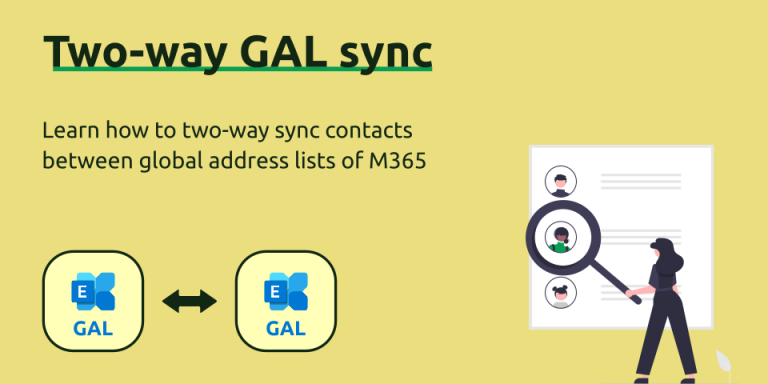
Because the GAL is the organization’s single source of truth for employee and organizational contact data, this is a natural fit for a one-way, one-to-many sync: one source (the Microsoft 365 GAL) feeding many destinations (each user’s personal Google Contacts). Users shouldn’t be able to accidentally overwrite the GAL by editing a synced contact on their phone, and admins don’t want to manage this per-device. They want it applied automatically, tenant-wide, and kept current in the background.
SyncPenguin’s Microsoft 365 GAL connector reads both tenant user profiles and organization-wide contacts, so the destination address books end up reflecting the full picture: employees, shared mailboxes treated as contacts, and any external company contacts stored in the GAL.
Setting up the sync
1. Create a SyncPenguin account. Sign up at dashboard.syncpenguin.com – a 14-day free trial is available with no credit card required.
2. Create a new sync. From the Synchronizations section, click + New sync, choose Microsoft 365 GAL Contacts as the source app and Google Contacts as the destination app. Select the one-to-many sync direction, since you’re pushing from one GAL to many individual Google accounts.
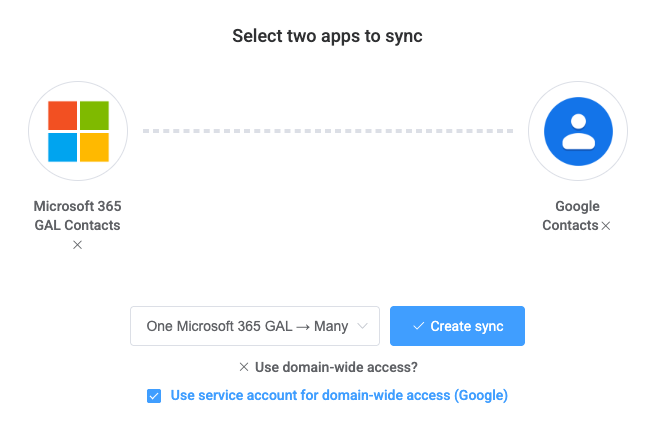
3. Connect the GAL. In the source section, connect an Microsoft 365 account with admin user-management permissions (or use your own Entra ID app registration) so SyncPenguin can read the GAL.
4. Connect Google Workspace users. For the destination side, you can connect individual Google accounts one by one, or use domain-wide delegation access (via a Google Workspace service account) so SyncPenguin can access all target users’ Contacts without asking each person to authorize separately – the recommended approach for larger teams. Note that domain-wide access must be selected during sync creation. You can also click on How to connect? in the connection window to see full instructions.
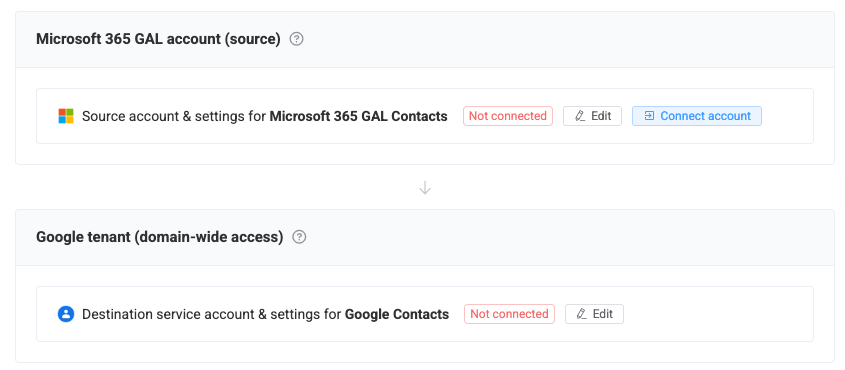
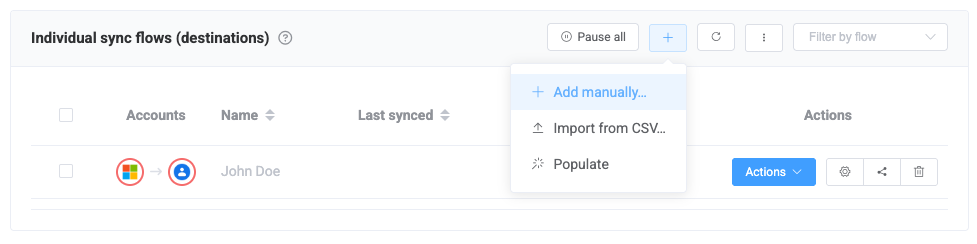
5. Add destination users. Add the Google Workspace users who should receive the synced GAL contacts. Users can be added manually, imported via CSV, or auto-populated from a Google group, so new hires are picked up automatically going forward. We recommend starting with just 1-2 test users and expanding from there.
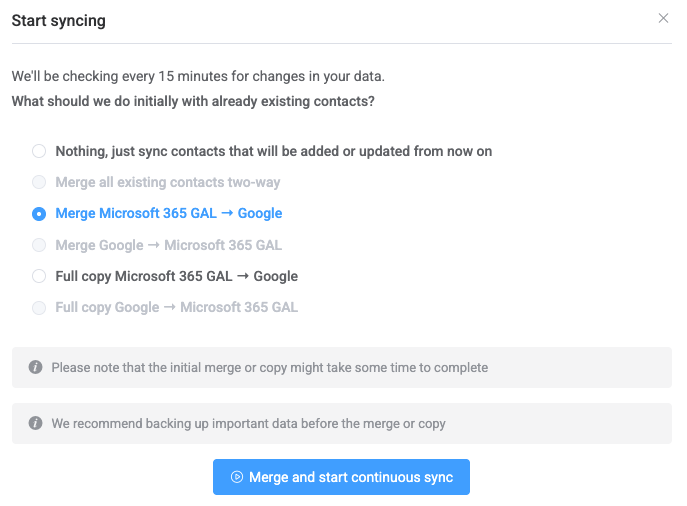
6. Start syncing. Choose whether to merge with each user’s existing contacts or perform a full copy, then start the sync. SyncPenguin performs an initial import and then continuously watches the GAL for changes, propagating updates, new entries, and removals to every connected Google Contacts list.
What users get on their Android device
Once the sync is running, each targeted Google Workspace user automatically has the company directory. Names, phone numbers, email addresses, job titles, and company info – all appearing in their personal Google Contacts. Because Android sources caller ID directly from the signed-in Google account, this means:
- Incoming calls from colleagues show the correct name instead of just a number.
- Outgoing calls can be placed by searching a colleague’s name rather than looking up a number.
- Contact details stay current automatically as HR updates titles, departments, or numbers in Microsoft 365 – no re-export needed.
- New employees appear in everyone’s contacts shortly after being added to the GAL, and departures are automatically removed.
The same synced contacts are also available in Gmail, Google Contacts on desktop, and any other app that reads from the user’s Google account – the Android caller ID benefit is simply the most visible day-to-day improvement.
A note on related use cases
If you instead want to sync a public Microsoft 365 contacts folder to users, or need a two-way sync where changes made on the Google side also flow back, or want to sync GAL to individual Microsoft 365 mailboxes rather than Google, SyncPenguin supports those configurations as well. Feel free to contact us to discuss the specifics of your setup.
That’s it
Syncing the Microsoft 365 GAL to individual Google Workspace users’ personal contacts closes a common gap in mixed-tenant organizations, and it pays off immediately the first time someone’s phone shows a colleague’s name instead of an unrecognized number. If you have any questions about setting this up for your organization, reach out through chat or email – we’re happy to help.